DataEvent Specifications
DataEvent specifications — webhook setup, payload structure, sample events, and the technical integration workflow.
Partner Webhook for DataEvent
To start receiving data events, partners must provide a valid webhook URL to Logimeter TechSupport. This webhook serves as the endpoint where we send DataEvent for each call as it happens, depending on the client’s subscribed package.
Logimeter support will then configure DataEvents callback URLs under:
- Company Features
- Partner Features
Data Event Structure
All data events follow this structure:
Important: callDetails.uuid links the call, CallEvent, and call details.
{
  "event": "TranscriptionEvent",
  "company": {
    "id": 40588,
    "name": "Company Name",
    "reference": "40588",
    "logimeter_reference": "fec03257-9a55-4763-884f-e56fcf05cabb"
  },
  "callDetails": {
    "uuid": "e7XXX92f-1X8X-4XX9-8Xff-xxMASKed54",
    "callId": 1431460839,
    "CallType": "Call Manager",
    "tracking_number": {
      "id": 3179067,
      "number": "27212129980"
    }
  },
  "detectedIntents": ["Sales"],
  "applicablePackages": ["Inbound Sale"],
  "TranscriptionDetails": {
    "packages": [],
    "PackageName": "Inbound Sale"
  }
}
Sample DataEvents
The provided Postman collection contains ready-to-use sample DataEvents for each package. These examples are designed to help development teams start implementing and validating their webhook endpoints immediately, without needing to wait for live event data.
Replace the placeholder Beeceptor URL in the collection with your actual DataEvent webhook URL before testing.
AI Insights Technical Integration Workflow
The integration workflow follows a systematic approach to ensure reliable data flow between partner systems and Logimeter AI Insights.
Logimeter → Partner AI Insights Workflow
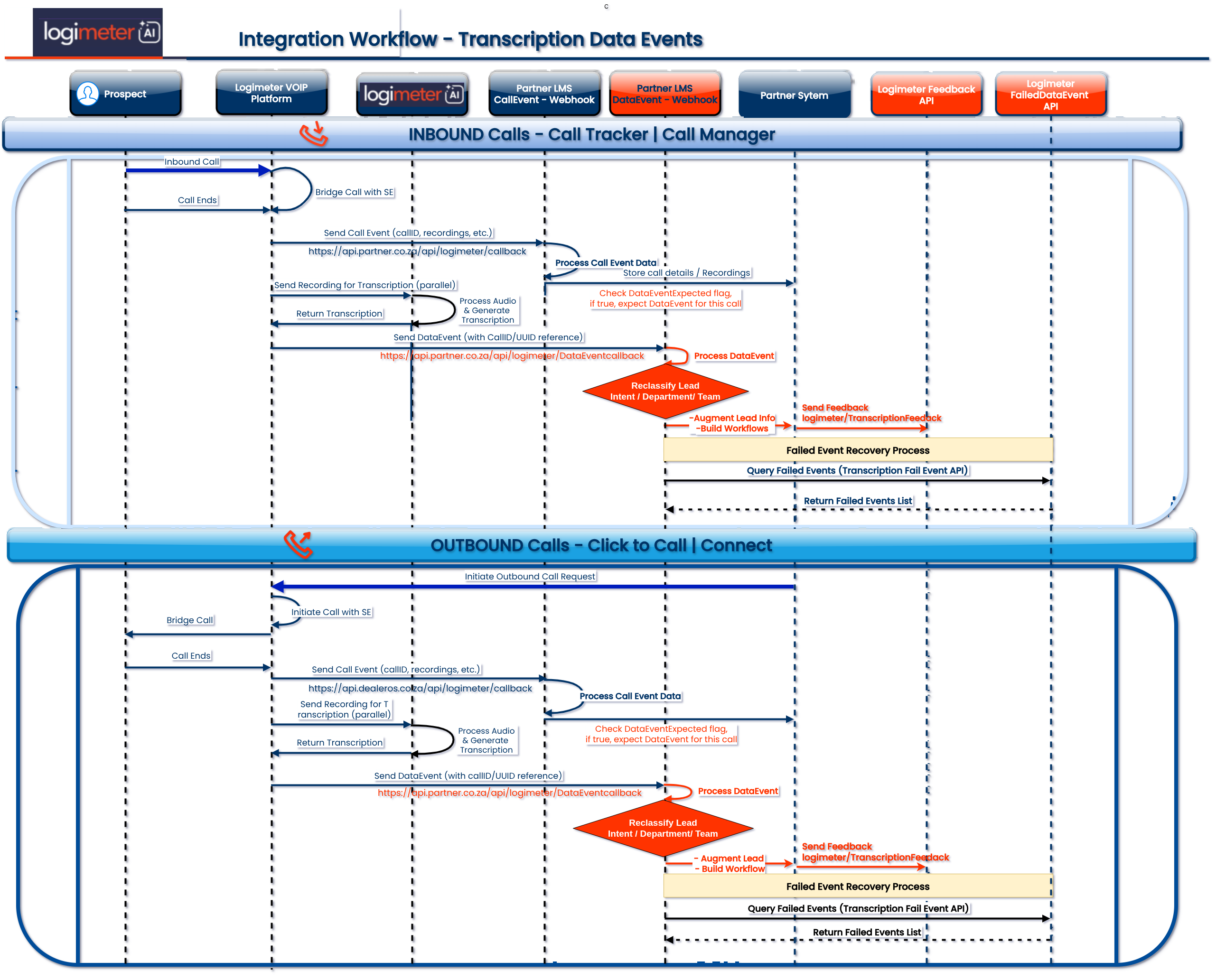
This workflow illustrates the systematic flow of call data and AI insights from Logimeter to Partner Lead Management System (LMS), enabling robust lead augmentation and workflow automation.
-
Call Initiation (Prospect / Partner / SE / Logimeter VOIP Platform):
- Inbound: A prospect calls a dealer’s tracking number (managed by the Logimeter VOIP Platform).
- Outbound: A Partner system or SE initiates a call (e.g., via Lead Connect or Click to Call) which is routed through the Logimeter VOIP Platform.
- The call is connected (“bridged”) to a Sales Executive (SE).
- Call Ends (Logimeter)
-
Send Call Event (Logimeter → Partner CallEvent:Webhook):
- Logimeter sends a CallEvent containing call details (e.g., callid, uuid) and recordings to the partner’s designated webhook endpoint.
- This is the initial notification of a completed call.
DataEventExpectedflag has been added to the callevents which inform a DataEvent is expected to be generated for this call.
-
Process Call Event Data (Partner LMS):
- The Partner LMS receives the CallEvent and processes its data.
- Call details are stored within the partner’s system.
-
Logimeter AI-Engine (Logimeter):
- Parallel Step: While the CallEvent is sent to the LMS, the call audio is forwarded to the Logimeter AI-Engine for processing.
-
Generate AI Insights (Logimeter):
- Logimeter’s AI processes the audio and generates AI-driven insights based on the configured subscription package (e.g., Inbound Sales, Outbound Aftersales etc.).
-
Send Data Event (Logimeter AI Insights → Partner DataEvent:Webhook):
- Once the AI-Insights are generated, Logimeter sends a DataEvent containing all the detailed AI insights to the partner’s configured webhook endpoint. The
callDetails.uuidlinks this event back to the original call.
- Once the AI-Insights are generated, Logimeter sends a DataEvent containing all the detailed AI insights to the partner’s configured webhook endpoint. The
-
Process Data Event & Augment Lead (Partner LMS):
- The Partner LMS receives the DataEvent containing AI-derived insights.
- The system evaluates whether the lead should be reclassified based on the AI-identified intent, which may involve updating the lead’s intent, team, or department assignment.
- The extracted data, such as prospect details, agent information, detected sales intent, recommended next steps, and lead quality score, is used to enrich the lead record.
- This information can then trigger automated workflows within the LMS, including lead reallocation to the correct team, task creation for follow-up, automated communications or reminders, and opportunity flagging for high-potential leads.
-
Send Feedback (Partner LMS → Logimeter Feedback API):
- The Partner LMS can send feedback on transcription accuracy (e.g.,
incorrectFields) to the Logimeter Feedback API (https://next.logimeter.com/v1/transcription/feedback/) to improve AI performance.
- The Partner LMS can send feedback on transcription accuracy (e.g.,
-
Failed Event Recovery (Partner LMS → Logimeter — Optional):
- If a DataEvent fails to be received or processed, the Partner LMS can query the Logimeter Transcription Fail Event API (
https://next.logimeter.com/v1/transcription_events_fail/) to retrieve failed events, enabling robust error handling and retry mechanisms. - A list of failed events is returned to the Partner LMS for further processing.
- If a DataEvent fails to be received or processed, the Partner LMS can query the Logimeter Transcription Fail Event API (
Integration Best Practices
Webhook Endpoint Requirements
- Response Time: Respond within 30 seconds to avoid timeout.
- Status Codes: Return HTTP 200 for successful processing.
- Error Handling: Return appropriate HTTP error codes for failures.
- Idempotency: Handle duplicate events gracefully using
uuid.
Monitoring and Maintenance
- Regular Monitoring: Check for failed events using the Fail Event API.
- Proactive Retry: Implement scheduled retry processes for failed events.
- Feedback Submission: Regularly submit feedback for continuous improvement.
- Webhook Health: Monitor webhook endpoint availability and performance.
Security Considerations
- Token Security: Securely store and rotate API tokens.
- Webhook Validation: Validate incoming webhook payloads.
- SSL/TLS: Use HTTPS for all API communications.
- Access Control: Implement proper access controls for sensitive data.